
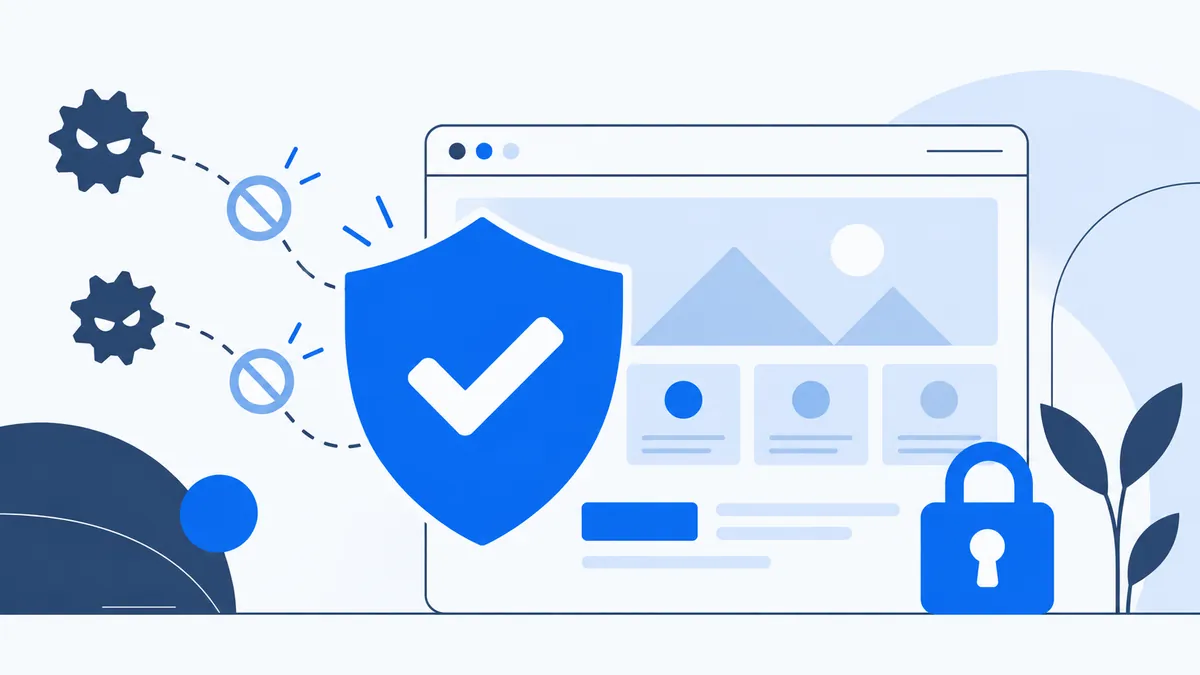
The WordPress security is essential for protecting your site against hacking, and prevention is vital to stop intrusions. Being hacked is a hard experience to get over, and it takes a lot of money and time to repair the resulting losses.
Explore our service: WordPress hosting
Generally, when you have a domain name and a web hosting plan and you choose WordPress for your website or blog, you may not give much thought to protecting it against hackers. However, even if your blog or site is small, you should not rule out the possibility that it could be hacked or attract hackers' interest. A lack of WordPress security measures then becomes an opportunity that hackers exploit to steal your database or carry out harmful actions.
To deal with this problem and keep your website protected, you can put these 7 WordPress security practices in place:
1 – Regular backups of your site
Backing up your site regularly is the simplest and safest protection in case of disaster. If you have a recent backup, you can restore your site as it was before it was hacked or damaged. This will let you fix the problem and move on as quickly as possible.
You can make the backup yourself and keep a copy locally, or you can install a plugin that does it automatically for you (plugins such as UpdraftPlus or WP DB Manager will make your life easier).
You can also choose web hosting for your .ma domain name or other extensionthat includes automatic backups. Indeed, Cap Connect provides an automatic daily backup on all web hosting plans.
2 – Update WordPress, your themes and your plugins
The same goes for plugins and themes. You should update your current theme and the plugins installed on your site. This helps you avoid vulnerabilities, bugs and potential WordPress security weak points.
3 – Remove the default "admin" username
When installing WordPress, you should never choose "admin" as the username for your main administrator account. A username like that is easy to guess and open to hackers. All they need to get into your account and hack your website is to guess the password. This weakens your WordPress security.
4 – Create a strong password
However unique your username is, if your password is weak, a hacker can easily get in and destroy your site's online presence.
To strengthen this area, you should use a unique username with a strong password. Make sure your password is a combination of different characters (such as mHlLuK778 @ 3O) and is between 10 and 15 characters long.
You can also use https://www.generateurdemotdepasse.com if you can't come up with the most secure password for your WordPress site.
Don't forget to change your password at regular intervals. This will greatly strengthen your WordPress login page and keep hackers away from your site.
5 – Scan your site's files regularly
If you want to strengthen WordPress security, monitor changes made to your website's files using plugins such as Wordfence.
And don't forget to replace "regularly" with "daily". The sooner you detect an intrusion, the more easily you can clean up and restore your site.
You will receive an automatic email with the scan report after each check.
6 – Enable an SSL certificate on your site (HTTPS)
Implementing an SSL (Secure Socket Layer) certificate is a sensible choice for securing the administration panel. SSL ensures secure data transfer between users' browsers and the server, stopping hackers from breaking the connection or stealing your information.
Getting an SSL certificate for your WordPress website is simple. You can buy one from a third-party company or check whether your hosting provider supplies one for free.
Once the security certificate is in place, you can add the following line to wp-config.php to force the use of SSL:
define (‘FORCE_SSL_ADMIN’, true);
This will apply to the login pages and the dashboard, and the URL will change from HTTP to HTTPS (the S stands for "Secure").
Cap Connect offers a free Let’s Encrypt SSL certificate with all web hosting plans.
7 – Limit the number of login attempts
Limiting the number of login attempts is the first thing to do to avoid falling victim to hacking and to ensure better WordPress security. Indeed, unlimited username and password attempts are what allow hackers to succeed. They will almost certainly end up discovering your login details and gaining access to your administration panel.
To deal with this problem and limit possible login attempts, you can use specialised plugins, such as Wordfence or All In One WP Security and firewall.
Choose WordPress web hosting in Morocco with Cap Connect and enjoy several benefits.